
A customer taps Directions on a Tacoma studio’s website. The map brings them to the correct building, but the first door they try opens into a different business. The missing piece was a short arrival note about which entrance to use.
For a business that receives visitors, start with a copyable public address and a link to directions. Add an interactive map when it helps customers make a decision on the page, such as choosing between locations. For a business that travels to customers, show where you work and give people a way to check coverage.
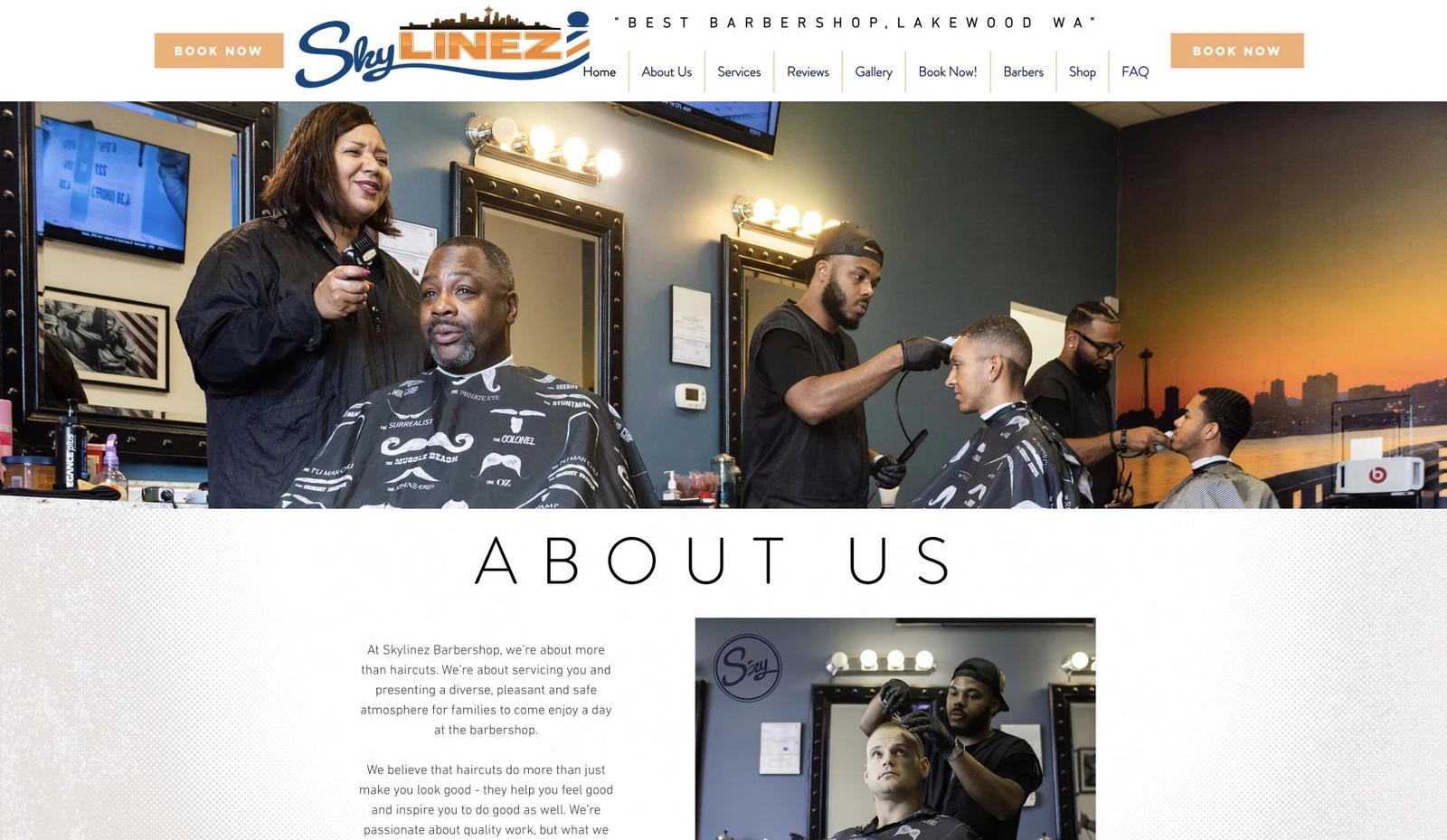
The cover shows earlier Skylinez Barbershop website work by Umanifest. The studio and cleaning business below are hypothetical examples.
Tell people where the service happens
Imagine a pottery studio in Tacoma that receives people for scheduled classes. A visitor needs the public street address and suite, an explanation of how classes are scheduled, and a route to the building. If the booking email goes out after payment, the visitor should see the same location there. Someone deciding whether to book should be able to find it beforehand.
Add one verified detail that the map may miss. A studio in a shared building might write, “Use the courtyard entrance and follow the signs to Studio B.” Check those words from the sidewalk. If visitors need an alternate entrance, verify the route and how to request assistance before describing it.
Now imagine a mobile cleaner based in University Place. Its customers want to know whether the business can come to their property. A short list of areas it actually covers and a link labeled “Ask about service at your address” help them take the next step. A pin marking a private office could invite a trip to a place that receives no customers.
Google’s Business Profile instructions say to remove the address from the listing if you do not receive customers at that address. A hybrid business can show its customer-facing location and service area. On your own website, explain those two options separately so people know whether to visit or request a callout. Google Business Profile service-area guidance
Make the directions link specific
Label the link for the place it opens. “Get directions to the Tacoma studio” carries more information than “Map,” especially when a page lists two locations. Keep the complete street address in regular text next to the link so visitors can copy it into their preferred navigation app.
Google documents a directions URL that works across devices without an API key. It starts with https://www.google.com/maps/dir/?api=1 and can take a destination encoded as a URL parameter. A place ID paired with the destination helps when similar names or addresses are easy to mix up. Leave the starting point to the visitor so Maps can use an available location or ask for one. Google Maps URLs
Test the link from the published page. A pin with the right name can still suggest arrival on the wrong side of a building. Compare the route endpoint with the entrance note, particularly when the front door and parking access are on different streets.
Give an embedded map a job
A map can help a visitor compare two branches or see where a studio sits within a larger site. Keep the addresses and directions links beside it. If someone only wants to start navigation, the link should be easy to reach without panning or zooming.
An embedded Google map loads an interactive frame on the page. A separate directions link opens Maps when clicked. If an optional frame sits farther down the page, consider lazy loading it and test when it appears on a phone. The effect depends on placement and the rest of the page. Google Maps Embed API · web.dev iframe loading
Give the frame a descriptive title such as “Map of the Tacoma studio.” That identifies the frame for assistive technology. Check the map controls and keyboard movement separately, and keep any essential directions in ordinary page text. A visitor should be able to reach the next contact link without having to operate the map. W3C technique for iframe titles
Run the cover-the-map test
Open the location page on a phone and leave the map below the visible area. Ask someone unfamiliar with the business to read the page and answer three questions.
- Do I go to the business, or does it come to me?
- If I visit, can I copy the full address and identify the entrance? If the business travels, can I check whether it serves my area?
- What do I tap to get directions, book a visit, or ask about coverage?
Then open the actual directions link on a phone and a computer. Confirm the correct location and compare the suggested arrival point with the written instructions. For a mobile service, follow the coverage inquiry through to the right form or contact option. Repeat the test after a move, entrance change, or new location. A map pin can survive a redesign while the route it opens has changed.
Sources & further reading
- Google Maps URLs: directions
- Google Business Profile: service areas and hybrid businesses
- Google Maps Embed API: embedding a map
- W3C: describing iframe contents with a title
- web.dev: lazy loading iframes
Published by Umanifest with AI-assisted research and writing. External standards and tools can change; sources are provided so you can check the current guidance.