
A customer finishes describing a project, taps Send, and watches the button change. A blank form, a spinning icon, and a useful receipt tell three very different stories.
For a small service business in Tacoma or University Place, the path from form to follow-up needs a clear ending for the visitor and a clear beginning for the person handling the request. Plan both before approving a form because it looks good on the page.
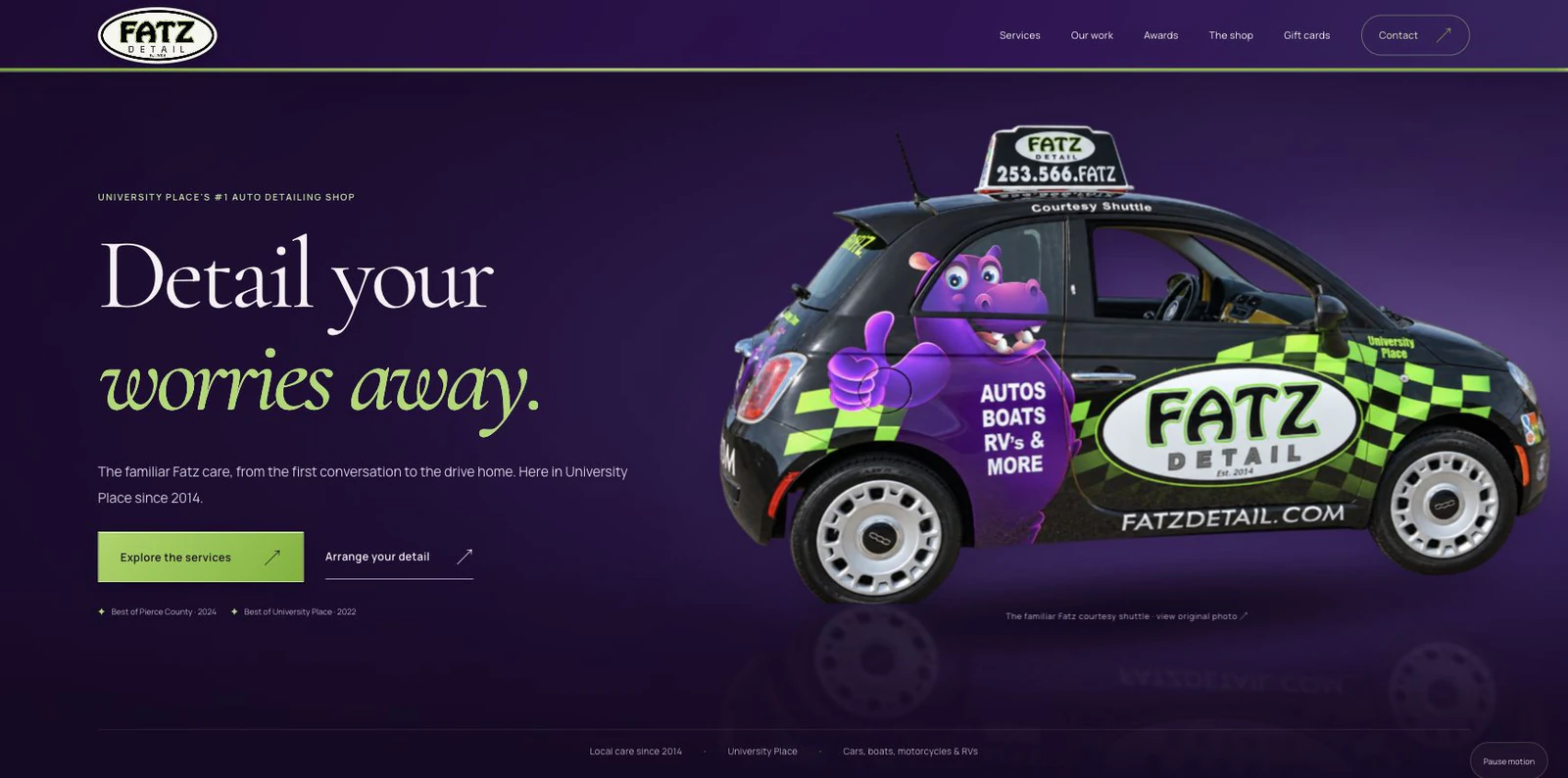
This guide uses hypothetical service-business examples. The cover shows Umanifest’s Fatz Detail redesign preview; it is a visual example, not evidence of a tested submission or a launched version. Our contractor quote-form guide covers which questions to ask. Here, the focus is what happens after those answers are sent.
Decide what your confirmation actually confirms
Write down the events in the intended workflow: the visitor presses Send, the server accepts the request, an inquiry record is saved, a notification is sent, and someone reviews the inquiry. Your system may use a different arrangement. Have its designer explain the actual sequence.
Each message should describe an event the system has established. A button click alone is not evidence of receipt. A saved record does not establish that a notification reached an inbox or that a person read it. A form that opens the visitor’s email app has started a draft; it has not itself sent that email.
For a hypothetical landscaping inquiry, a confirmed saved request might justify a receipt telling the customer their project details were received. It would not justify “Your visit is booked” if no appointment was reserved. Keep inquiry, estimate, booking, and payment language aligned with the action that really occurred.
Explain the wait without leaving someone stranded
While a request is processing, give the visitor a readable indication that the website is working. Keep the state visually connected to the form so someone on a phone does not have to search the page for a result.
Prevent repeated submissions while a request is actively processing, then restore a useful action when the system can establish what happened. Ask what the visitor sees if processing takes longer than expected. An indefinitely disabled button offers no recovery path.
There is also an uncertain case: the browser can lose its connection before receiving the server’s response even though the server saved the request. That differs from a confirmed rejection. A suitable hypothetical message could explain that receipt could not be confirmed and provide a working contact option.
Ask the developer how a retry is handled. Can the same request be recognized without creating another inquiry? How does the customer find out whether it arrived? Treat those as questions to test, not capabilities every form automatically has.
Give the customer a useful receipt
GOV.UK’s confirmation-page pattern recommends telling people that a transaction is complete and explaining what happens next. It also discusses references, contact information, and keeping a record. Those are useful design ideas to adapt to an inquiry; a private business does not need to copy the government’s layout or feedback link.
After confirmed receipt, make the next step understandable. A hypothetical service business might show the selected service, a genuine request reference if its system produces one, and the actual route for questions or corrections. Keep the summary proportionate; the confirmation does not need to repeat every personal detail the visitor entered.
Use a response window only when the owner has agreed to it and arranged to support it. Otherwise, describe the real review process without inventing a deadline. If the next action depends on a person checking availability, say that rather than presenting availability as settled.
Mention a confirmation email only when that action is genuinely supported and verified. An on-page receipt and email delivery are separate checks. Someone who receives no email still needs a way to understand the outcome shown on the website.
Separate an answer problem from a service problem
An omitted email address and an unavailable submission service need different explanations. The customer can correct a missing answer. They cannot repair your server by retyping their project description.
GOV.UK’s error-message guidance distinguishes validation problems from service problems outside the user’s control. It recommends explaining what went wrong, helping someone fix the answer, and retaining entered information when presenting validation errors. Its specific styling and error-summary conventions belong to that design system; they are not universal visual requirements for business websites.
For example, an empty required field can have a visible message naming the missing answer. A temporary service failure needs an honest service message and an appropriate alternative contact route. Keep the visitor’s current answers available for correction or a supported retry where practical. This does not mean storing project details indefinitely in their browser.
WCAG 3.3.1, Error Identification, is Level A. When an input error is detected automatically, the affected item must be identified and the error described in text. A red outline alone does not provide that description. Suggestions for correcting errors are addressed separately by WCAG 3.3.3. The error-identification criterion does not prescribe one particular message layout or focus strategy.
Make changed status understandable beyond the screen
A message can appear visually while remaining difficult to notice with assistive technology. Ask how your implementation exposes applicable processing, success, or error updates, then test the actual behavior.
WCAG 4.1.3, Status Messages, is Level AA. Applicable status messages in markup need roles or properties that allow assistive technology to present them without receiving focus. This concerns status changes without a change of context; it does not prohibit appropriate focus movement to an error summary or a new confirmation view.
Have the designer choose the mechanism for the specific interaction. Adding an announcement to every small change can create unnecessary interruptions. Check the result with keyboard navigation and relevant assistive technology rather than assuming that a visible success message reaches everyone. This check alone does not establish whole-site accessibility conformance.
Assign someone to the internal handoff
The website’s final screen is only part of the business process. Identify who checks incoming requests, where the authoritative inquiry record lives, and how the team distinguishes a new request from one already handled.
For a hypothetical two-person trade business, that could mean one named person reviewing a private inquiry list and another covering absences. The owner should choose the real arrangement. Do not publish a round-the-clock response promise because a notification can be sent at any hour.
Ask what happens when notifications fail. If a private record exists independently, someone needs a practical way to check it. If email is the only destination, understand that dependency and how delivery problems would be noticed. Keep access limited to the people who need the inquiry details.
An automation planning discussion can connect these steps, but first establish what the business needs a person to decide. Sending another automated message will not resolve an unclear responsibility for answering the customer.
Test four paths before calling the form ready
Arrange a controlled test with the owner so test requests are identifiable and handled appropriately. Use test contact details you control and avoid real customer information.
- Valid request: compare the visitor’s receipt with the actual saved record or intended destination. Check the business notification separately.
- Invalid answer: leave a required field blank or use a known invalid format. Check that the error identifies the field and that other answers survive correction.
- Unavailable service: have the developer test a controlled failure. Check the explanation, preserved answers where supported, and genuine fallback contact route.
- Uncertain result and retry: simulate a lost response in a controlled environment. Check what is saved, what the visitor is told, and whether a supported retry creates a duplicate.
Test on a phone-sized layout and with a keyboard, including the path back from an error. Obtain authorization before creating a real booking, purchase, customer message, or production inquiry during testing.
Keep a short record of the outcome and who checked the business side. A static thank-you screen demonstrates presentation. A completed, controlled walkthrough establishes what happened in that test. Bring those findings into the website redesign brief so the next revision addresses the full customer journey.
Sources & further reading
- GOV.UK Design System: confirmation pages
- GOV.UK Design System: error messages
- W3C: error identification, WCAG 3.3.1
- W3C: status messages, WCAG 4.1.3
Published by Umanifest with AI-assisted research and writing. External standards and tools can change; sources are provided so you can check the current guidance.